Have you ever experienced issues with websites or your browser? One solution may be to clear your cookies manually. Cookies are files created by web browsers that store user-specific information, such as selections in a form or shopping cart contents.
When you log into Manhunt, cookies are placed on your computer to remember your login information and settings. If this information is incorrect or corrupted, it can cause the site to crash or log you out when navigating between pages.
Clearing your cookies may help solve these issues. Just remember, browsers will normally clear cookies, but you can clear them manually if needed.
A blocked cookie will not allow you to access tughub.tv.
Quick tips:
1. Switch browser
2. Clear cache, cookies, and offline data. Next, quit the browser and then reopen it.
3. Security software like firewalls or pop blockers may need to be disabled, or you need to allow the site.
SAFARI
Important: Changing your cookie preferences or removing cookies and website data in Safari may change or remove them in other apps, including Dashboard.
Choose Safari > Preferences, click Privacy, then do any of the following:
- Change which cookies and website data are accepted: Select a "Cookies and website data" option:
- Always block: Safari prevents websites, third parties, and advertisers from storing cookies and other data on your Mac. This may prevent some websites from working properly.
- Allow from current website only: Safari accepts cookies and website data only from the website you're currently visiting. Websites often have embedded content from other sources. Safari does not allow these third parties to store or access cookies or other data.
- Allow from websites I visit: Safari accepts cookies and website data only from websites you visit. Safari uses your existing cookies to determine whether you have visited a website before. Selecting this option helps prevent websites that have embedded content in other websites you browse from storing cookies and data on your Mac.
- Always allow: Safari lets all websites, third parties, and advertisers store cookies and other data on your Mac.
-
Remove stored cookies and data: Click Remove All Website Data, or click Details, select one or more websites, then click Remove.
Removing the data may reduce tracking, but it may also log you out of websites or alter their behavior.
In Chrome
You can allow or block third-party cookies by default.
- On your computer, open Chrome.
- At the top right, select More
Settings
.
- Select Privacy and security
- Tip: If you're part of the test group that limits third-party cookies by default, learn how to manage third-party cookie settings for test group users.
- Select an option:
- Allow third-party cookies.
-
Block third-party cookies.
- If you block third-party cookies, all third-party cookies from other sites are blocked, unless the site is added to your exceptions list.
How to enable cookies in Firefox?
Read these guides on how to enable cookies in the Firefox browser on your computer, phone, or tablet. The first guide explains how to enable cookies in Firefox on a computer, while the second guide explains how to enable cookies in Firefox on a mobile device, such as a phone or tablet.
How to enable cookies in Firefox on your computer?
To enable cookies in Firefox on a personal computer or Mac, perform the following steps:
- On your computer, open the Firefox browser.
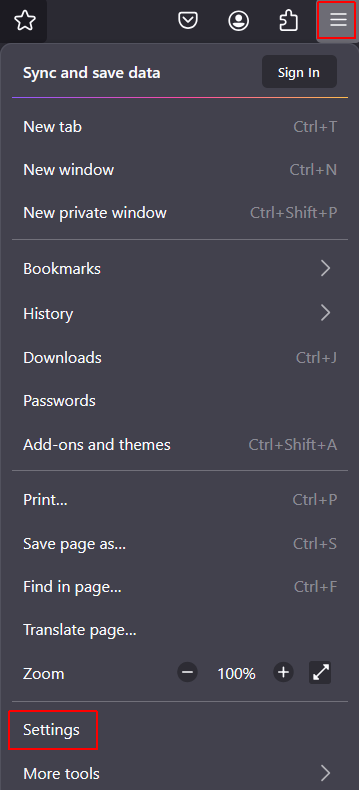
- Click Menu (three horizontal lines at the top-right corner) > Settings (on some OS it is called Options):
- Click Privacy & Security:
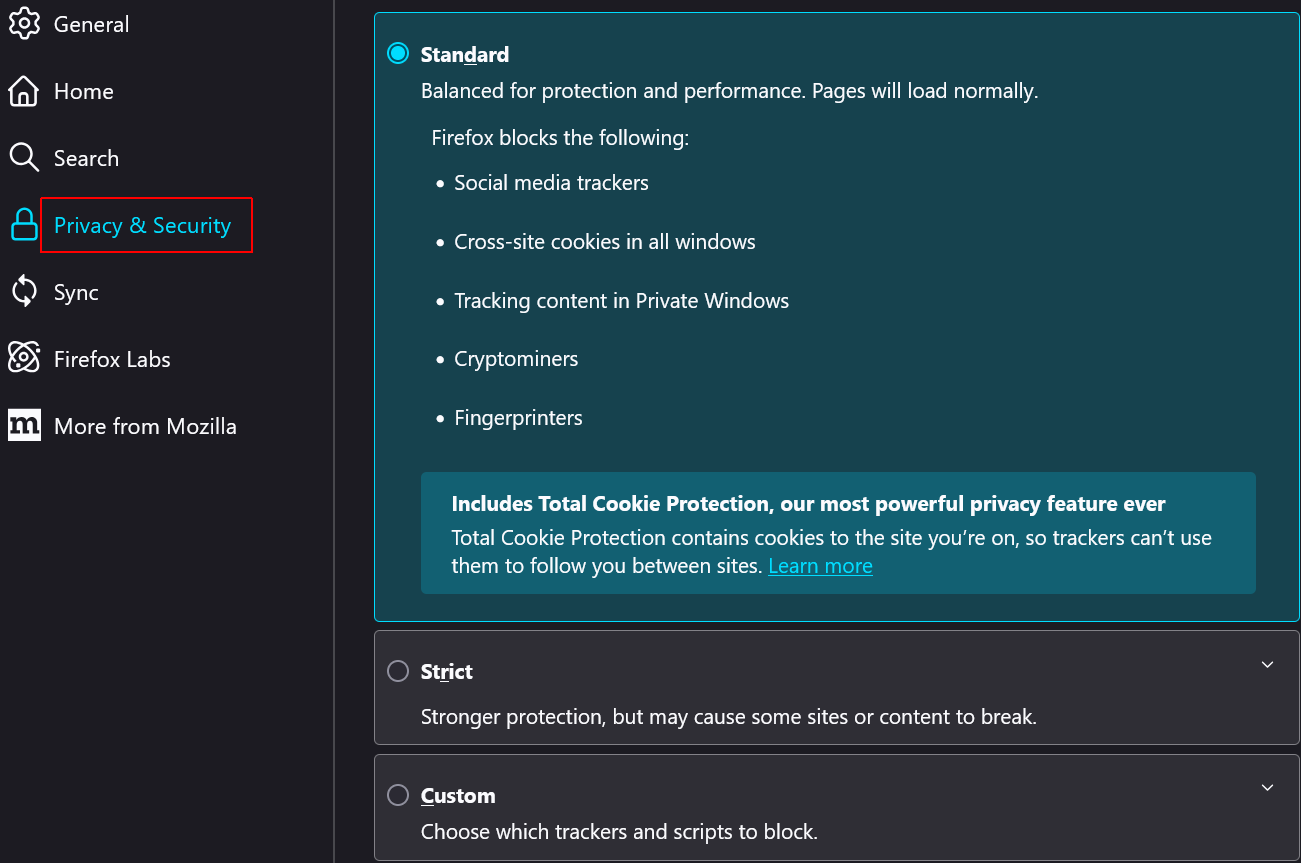
- Select your Firefox browser privacy settings.
Firefox offers advanced browser privacy settings, allowing you to control both privacy and cookie settings. You can choose one of the three main options for managing privacy and cookies: Standard, Strict, or Custom.
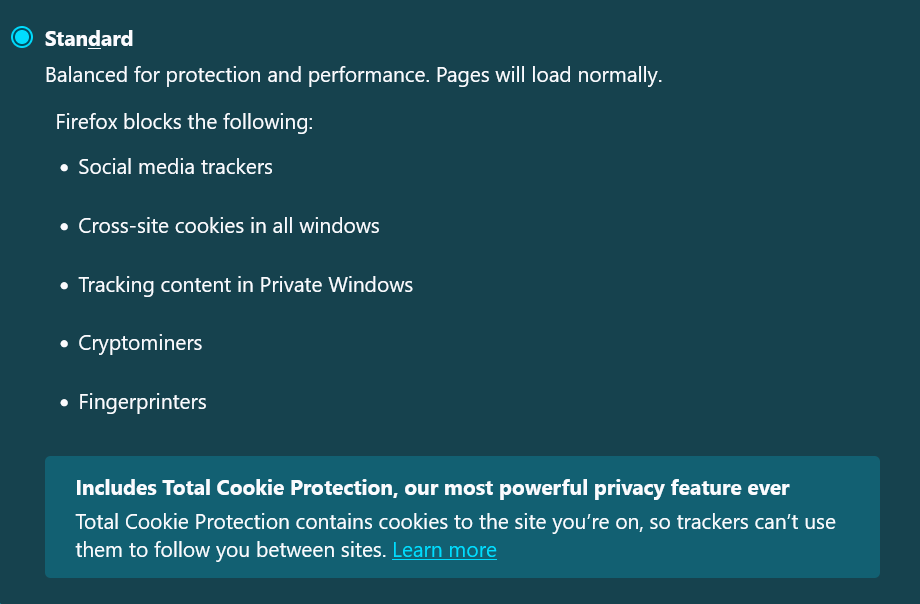
The Standard option strikes a balance between protection and performance. It's the default selection, allowing you to load web pages normally while respecting your privacy.
The Strict option provides robust privacy and security settings for the Firefox browser. It blocks third-party Tracking Cookies, Cryptocurrency miners, social media trackers, and fingerprinters. It also blocks known trackers in all your browser windows, not just in Private Browsing. The Strict option still allows essential First-party cookies which most websites need. However, with this option, some websites could not work properly. If this happens, you could disable the blocking of cookies for certain websites you trust.
The Custom option gives you the biggest control over what will be allowed or blocked by Firefox. You can choose to individually allow or block certain cookies, trackers, crypto miners, or fingerprinters.
-
Enable cookies in Firefox. Select the Standard option, which provides balanced privacy settings. This option allows most first-party cookies that websites need to function properly and blocks third-party cookies, which are often used by companies to track user behavior across multiple websites. The standard option will block cross-site Tracking Cookies and social media trackers, used for website user targeting, but some third-party cookies could remain if they are not considered to be third-party tracking cookies. If you open a Private browser window, third-party tracking cookies will be blocked.
- Additionally, you can manage or delete cookies, site data, and cache already stored on your computer. Go to Privacy & security > Cookies and Site Data > Clear Data / Manage Data:
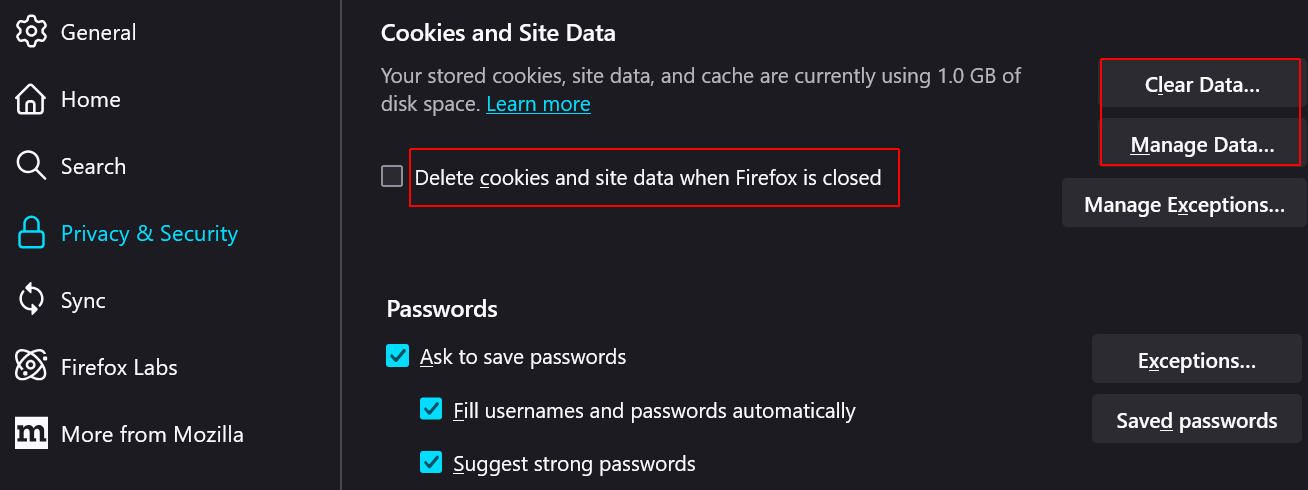
Click Manage Data, and you will see your stored cookies, which websites are storing cookies, how much space it takes, and other data. You could delete selected cookies.
Done, you have enabled cookies in Firefox on your computer.

 Settings
  .
.
Comments