Pop-ups can be a frustrating and intrusive experience when browsing the web.
However, it's important to note that blocking all pop-ups may interfere with certain websites that rely on them for essential features, such as some banking sites.
To allow specific websites to use pop-ups while blocking others, you can add those specific websites to the list of allowed sites. While some browsers do block most pop-ups, some websites may still show pop-ups using uncovered methods, even when blocked.
CHROME
Change your default pop-up and redirect settings
- On your computer, open Chrome.
- At the top right, click More> Settings.
- Click Privacy and security,
Site settings,
- Choose the option that you want as your default setting.
 Site settings,
FIRE FOX
To access the pop-up blocker settings:
- In the Menu bar at the top of the screen, click Firefox and select Settings (or Preferences, in some cases).
- SelectPermissions and data on the left.
- Go down to the Permissions section.
- Uncheck the box next to Block pop-ups and third-party redirects to disable the pop-up blocker altogether.
- Click the Manage exceptions button underneath Block pop-ups and third-party redirects to open a dialog box to choose which sites are allowed to display pop-ups.
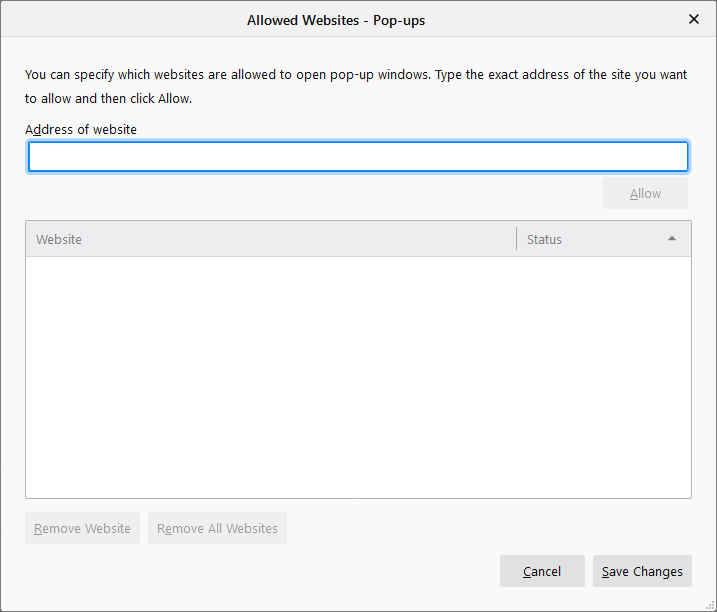
The dialog box offers you the following choices:
- Type or paste the address of a website and click the Allow button to add it to the list of sites that will be allowed to open pop-up windows.
- Select a website from the list and click the Remove Website button to remove it from the exceptions list.
- Click the Remove All Websites button to remove all websites from the exceptions list.
Click the Save Changes button to apply your changes.
Note: Allowing pop-ups for a trusted site also permits third-party redirect blocking; these settings are linked and must be toggled together. You can think of the third-party redirect blocking as an extension of the pop-up blocker, and it protects you by ensuring that pop-ups only open within a secure browser context.
Comments