Each time you access a file through your web browser, the browser caches (stores) it. By doing this, the browser doesn't have to newly retrieve files (including any images) from the remote website each time you click Back or Forward. You should periodically clear the cache to allow your browser to function more efficiently. Make sure that you close your browser windows/tabs completely and open a new window before clearing your cache.
FIRE FOX:
In the Menu bar at the top of the screen, click Firefox and select Settings (or Preferences, in some cases).
- Select the Privacy and security panel.
- In the Browsing data section, click Clear browsing data.
- The Clear browsing data and cookies dialog will open.
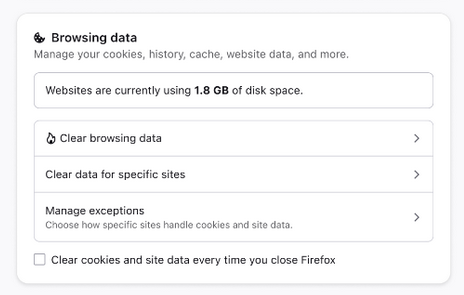
- On the dropdown next to When:, choose Everything. Make sure that only temporarily cached files and pages are checked.
- For more information about managing site data, see Manage local site storage settings.
- Click the Clear button.
- Close the Settings page. Any changes you've made will automatically be saved.
Tip: Here's another way to clear the Firefox cache:
- Click the menu button to open the menu panel.
- Click History and select Clear Recent History…
- Next to When:, choose Everything from the drop-down menu, select Temporary cached files and pages in the items list, make sure other items you want to keep are not selected, then click the Clear button.
In the Chrome app
- On your Android device, open Chrome
.
- On the right of the address bar, tap More
Delete browsing data.
 .
.
 Delete browsing data.
- To delete browsing history (including open tabs), choose a duration and tap Delete data. The default duration is 15 minutes.
- To choose more specific types of data you want to delete, tap More options. Select the types of browsing data you want to delete and tap Delete data.
- If you delete cookies while signed in to Chrome, you won’t be signed out of your Google Account.
Learn how to change more cookie settings in Chrome.
In other browser apps
If you use Firefox or another browser, check its support site for instructions.
What happens after you clear this info
After you clear cache and cookies:
- Some settings on sites get deleted. For example, if you were signed in, you’ll need to sign in again.
- Some sites can seem slower because content, such as images, needs to reload.
- If you're signed in to Chrome, you'll stay signed in to Google's websites, like google.com and youtube.com.
How cache & cookies work
- Cookies are files created by sites you visit. They make your online experience easier by saving browsing data.
- The cache stores parts of pages, such as images, to help them load faster on your next visit.
Comments